Sky Go Black Screen on Windows 11 Fix Guide
Estimated reading time: 17 minutes.
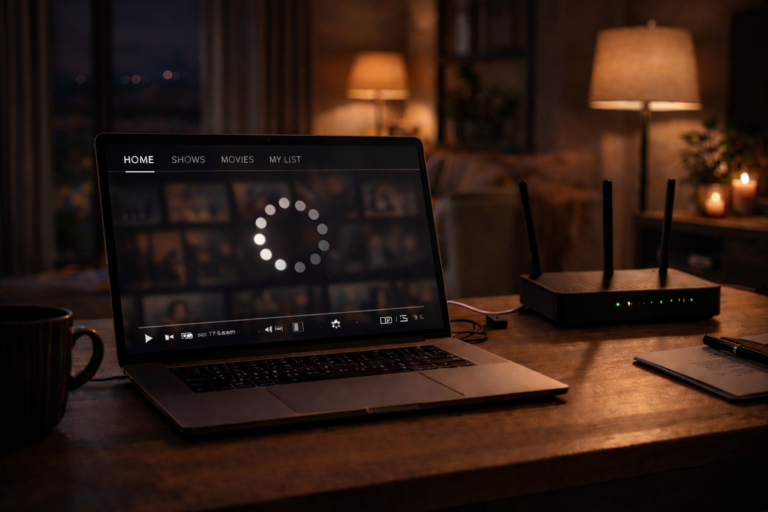
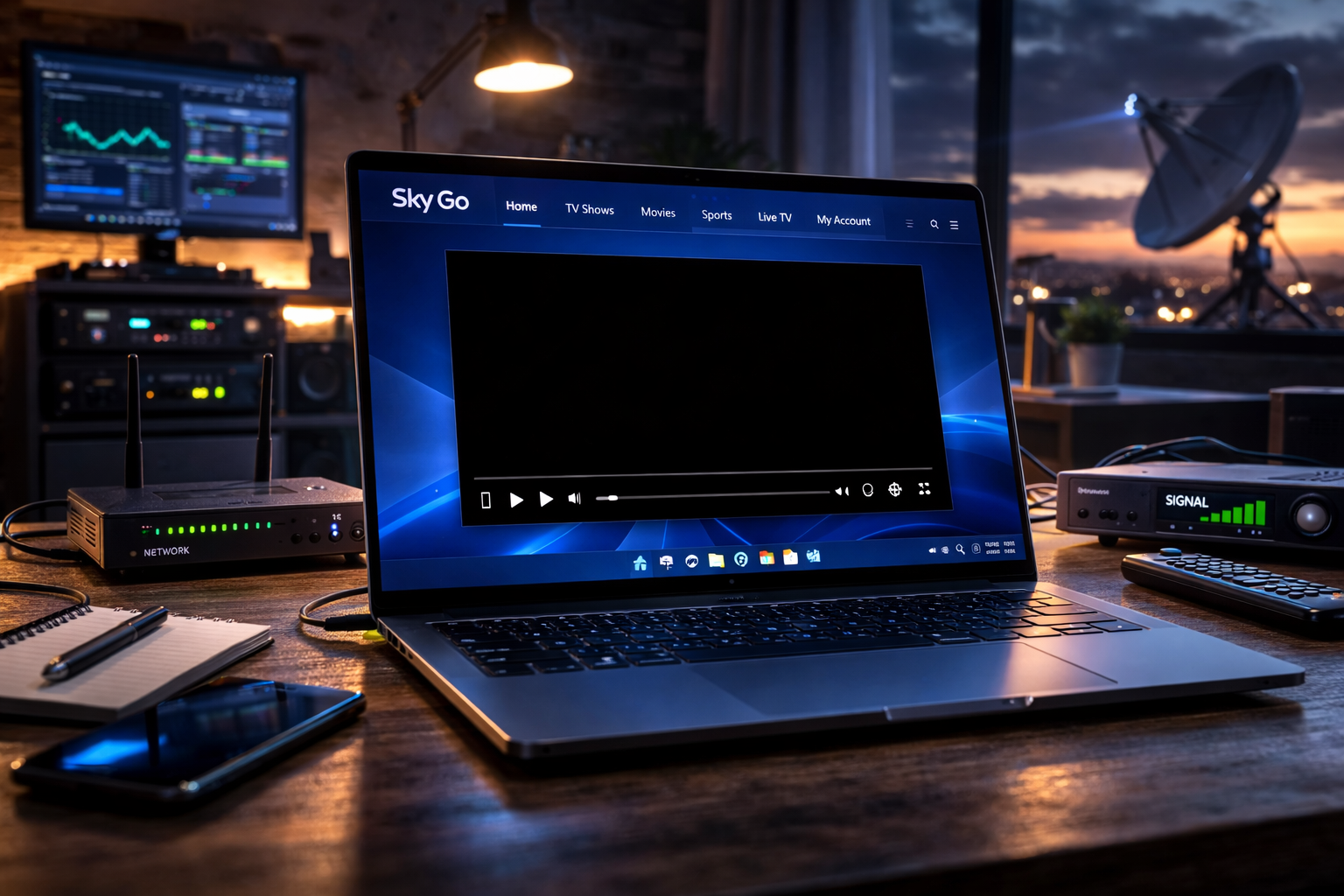
A black screen in Sky Go on Windows 11 is one of the most confusing playback problems viewers encounter. The application opens normally, menus respond correctly, and sometimes audio even starts playing. Yet the video area remains completely blank. At first glance it may appear that the stream itself has failed, but in many cases the issue actually occurs later in the playback process.
Streaming video on a computer involves several layers working together. The app must request the stream, the network must deliver video segments, the system must decode them, and the graphics engine must render them on screen. When the display pipeline fails while the rest of the application continues running, the result is often a black screen.
Quick Context
This guide explains why Sky Go sometimes shows a black screen on Windows 11 and how playback rendering, graphics drivers, display handling, and streaming initialization can influence the problem.
- What a black screen usually means
- How Sky Go initializes video playback
- Graphics drivers and rendering behavior
- Hardware acceleration and video decoding
- Display scaling and multi monitor issues
- Network related causes of blank playback
- System load and resource limitations
- Why some channels trigger the problem
- How to diagnose the real cause
- Common black screen scenarios
- Reality Check
- Final Verdict
- Frequently Asked Questions
What a black screen usually means
When Sky Go displays a black screen, the application itself is often still functioning. The interface loads, navigation menus appear, and playback controls respond normally. This suggests the application successfully launched and connected to the streaming service.
The problem typically occurs at the stage where video frames should be rendered on screen. The stream may already be arriving at the device, but the graphics pipeline responsible for displaying those frames fails to present them correctly.
This type of issue is different from buffering or connection failures. In buffering scenarios the video pauses but remains visible. With a black screen the player window itself fails to display the decoded frames.
Understanding this distinction helps narrow the troubleshooting process significantly.
How Sky Go initializes video playback
When a viewer selects a programme or live channel, the Sky Go application begins several steps almost simultaneously. First it confirms account permissions and stream availability. Then it requests video segments from the streaming servers.
After the first segments arrive, the player prepares the playback buffer and starts decoding the incoming media data. At this stage the application hands the decoded frames to the Windows graphics system so they can be rendered on screen.
If any part of this chain fails after decoding begins, the video window may remain blank even though the rest of the application appears to work normally.
That is why black screen problems often occur while menus and audio still function.
Graphics drivers and rendering behavior
Graphics drivers play a central role in how streaming video appears on screen. The driver acts as the bridge between the application and the graphics hardware responsible for rendering frames.
If the driver becomes outdated, unstable, or incompatible with the application’s rendering method, Windows may fail to present decoded video frames properly. The result can be a blank video area even though the player itself continues operating.
Updating the graphics driver or reinstalling it can sometimes restore proper rendering behavior. Many playback issues originate from this layer rather than from the streaming service itself.
Because Windows 11 relies heavily on modern graphics features, keeping drivers current is especially important for stable streaming playback.
Hardware acceleration and video decoding
Modern streaming players often rely on hardware acceleration to decode compressed video efficiently. Instead of using only the CPU, part of the workload is handled by the graphics processor.
When hardware acceleration functions correctly, video playback becomes smoother and system load remains lower. However, if the acceleration pipeline becomes unstable, the application may decode frames correctly but fail to display them properly.
This can produce symptoms such as black screens, flickering video, or frames that never appear in the player window.
Ensuring the system’s graphics drivers and video decoding components operate correctly can resolve many rendering related playback issues.
Display scaling and multi monitor issues
Windows 11 supports advanced display scaling and multi monitor setups. While these features improve usability, they can sometimes introduce unexpected rendering behavior in video applications.
For example, moving a playback window between monitors with different resolutions or scaling factors may affect how the player initializes the video renderer. In certain situations the application may fail to adjust correctly to the new display environment.
This can result in the video area appearing blank even though the application continues running.
Testing playback on a single monitor or adjusting display scaling settings can help determine whether display configuration contributes to the problem.
Network related causes of blank playback
Although black screens are usually related to rendering behavior, network conditions can sometimes contribute indirectly. If the first video segments fail to arrive correctly during playback initialization, the player may remain in an incomplete state.
In such cases the application may display the player interface but fail to receive the initial frames required to begin video rendering.
Unlike buffering, where playback starts and later pauses, this situation occurs before the player successfully begins displaying frames.
Checking network stability and ensuring the connection remains active during playback initialization can help rule out this possibility.
System load and resource limitations
Streaming video requires continuous decoding and rendering operations. If the Windows 11 system becomes heavily loaded by other applications, the player may struggle to allocate the resources needed for video playback.
High CPU usage, limited available memory, or heavy disk activity can interfere with the application’s ability to process incoming video frames in real time.
When the system falls behind in processing, the player may fail to render frames correctly even though the stream itself remains available.
Reducing background processes and ensuring the system has sufficient resources often improves playback reliability.
Why some channels trigger the problem
Different channels and programmes may use different encoding profiles or bitrates. While modern systems handle most formats without difficulty, certain combinations of resolution, bitrate, and decoding workload may stress weaker systems.
If the system struggles to decode a particular stream efficiently, the player may fail to present frames correctly. This can appear as a black screen even though the underlying stream exists.
For this reason viewers sometimes notice the issue only on certain channels while others play normally.
The difference often reflects decoding complexity rather than service availability.
How to diagnose the real cause
A useful diagnostic step is to determine whether the application itself remains responsive while the video stays blank. If menus respond normally and audio continues playing, the issue likely belongs to the rendering stage rather than the streaming stage.
Next consider when the problem occurs. If the black screen appears immediately when playback begins, initialization or decoding may be responsible. If it appears after switching monitors or entering full screen mode, display configuration may be involved.
Observing these patterns can reveal whether the issue originates from graphics behavior, network conditions, or system performance limitations.
Careful observation of when and how the problem appears often leads to a faster solution.
Common black screen scenarios
| Scenario | Possible cause | Recommended check |
|---|---|---|
| Menus visible but video window blank | Rendering pipeline failure | Check graphics drivers |
| Black screen after switching monitors | Display configuration issue | Test single monitor playback |
| Audio plays but video missing | Video decoding or rendering issue | Review hardware acceleration |
| Black screen on specific channels | Stream decoding workload | Observe system resource usage |
Reality Check
A Sky Go black screen on Windows 11 rarely means the service itself has stopped working. In most cases the stream arrives correctly but the system fails to render the video frames due to graphics driver behavior, decoding limitations, or display configuration.
Final Verdict
Final Verdict
Black screen issues in Sky Go on Windows 11 typically occur during the final stage of playback where decoded frames should be rendered on screen. Graphics drivers, hardware acceleration behavior, display configuration, and system resource availability all influence this stage. By examining when the problem appears and which components are involved in the playback chain, viewers can identify the real cause and restore stable video playback.
Frequently Asked Questions
| Question | Answer |
|---|---|
| Why does Sky Go show a black screen but still play audio | This usually indicates the video rendering pipeline failed while the audio stream continues playing normally. |
| Can graphics drivers cause a Sky Go black screen | Yes. Outdated or incompatible drivers can prevent decoded frames from being displayed correctly. |
| Why does the problem appear after switching monitors | Display scaling or resolution differences between monitors can affect how the video renderer initializes. |
| Does internet speed affect black screen problems | Network issues can affect playback initialization, but most black screen problems originate from rendering or decoding behavior. |